
Generative wallpaper for Mac
A generative wallpaper is a moving background your Mac draws in real time, without playing a video file. Walyro includes four scenes with adjustable colours and motion. These are procedural scenes, not AI images generated from a prompt.
Scenes at a glance
A generative wallpaper is drawn by your Mac as you watch it. There is no video behind it: the scene is a description of a look, and your graphics chip renders each frame from that description. Nothing loops, because there is no recording to return to the start of, and there is nothing to download before you begin.
Walyro includes four of them — Aurora, Gradient Flow, Starfield and Bokeh — with six colour variants each. You can change how fast a scene moves, how brightly it sits behind your windows and how much detail it shows, then save your version into the same library that holds your video wallpapers.
- Scenes included
- Aurora, Gradient Flow, Starfield and Bokeh
- Starting looks
- Six colour variants per scene, 24 in total
- Wallpaper file needed
- None; frames are drawn as you watch
- What you can adjust
- Motion, brightness and detail
- What a scene responds to
- Daylight, a busy desktop and your macOS accent colour
- Quality modes
- High at 30 fps, Economy at 12 fps, or Auto
- Displays
- All displays, the main display or one selected screen
- Requires
- macOS 14 or later
Four scenes to start with
Choose drifting light with Aurora, a calm colour field with Gradient Flow, stars over a nebula with Starfield, or soft floating lights with Bokeh. Each has six colour variants: 24 starting looks in all.
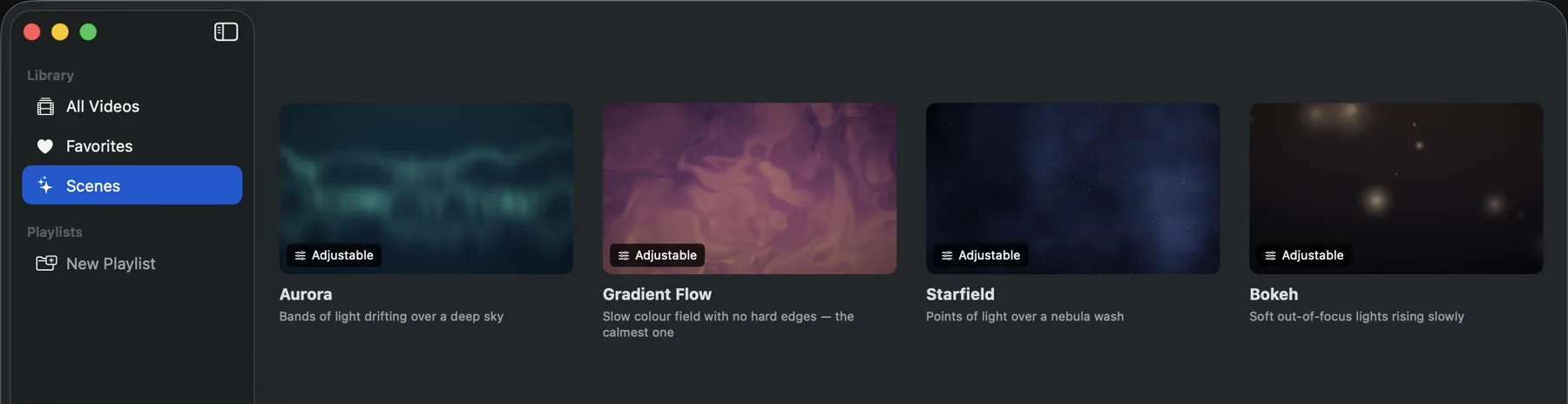
How to set a generative wallpaper on Mac
Install and open Walyro on a Mac running macOS 14 or later. You do not need to download a separate wallpaper video.
Open Scenes and choose a scene
Select Scenes in the sidebar, then click a scene. The preview uses your display’s proportions and shows a mock menu bar and Dock so you can check that icons remain readable.
Choose a colour variant
Pick a variant such as Emerald, Arctic, Ember or Graphite. Open Adjust if you want to change motion, brightness, detail or behaviour.
Choose your display and set the wallpaper
Select one display or all of them, then click Set wallpaper. Use Save as mine to keep your version in the library for later.

4.7 out of 5 · 95 ratings on the Mac App Store
Adjust colours and motion
Start with one of the six colour variants, then adjust the scene in its live preview. You can save multiple versions; each keeps the scene and variant as its name.
- Motion changes how quickly the scene moves.
- Brightness changes how strongly it appears behind your windows.
- Detail changes how busy the picture looks.
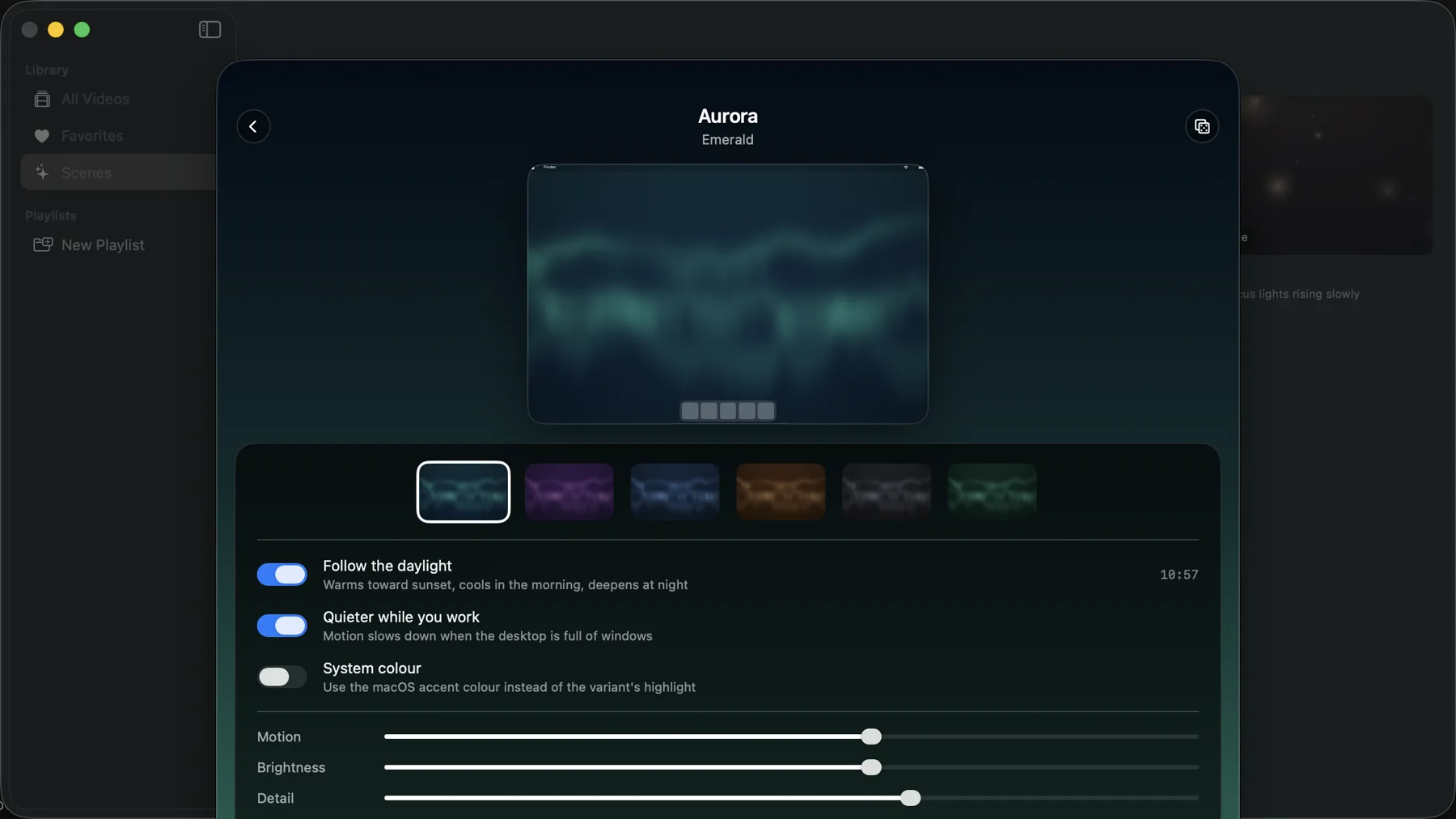
Let the scene follow your day
The three switches above the sliders let a scene respond to your Mac while keeping the look you chose.
- Follow the daylight warms the palette toward sunset, cools it in the morning and deepens it at night. It shades your chosen colours rather than replacing the scene.
- Quieter while you work slows motion when windows fill the desktop, making the background less distracting.
- System colour uses the macOS accent colour for the scene’s highlight, so it follows changes in System Settings.
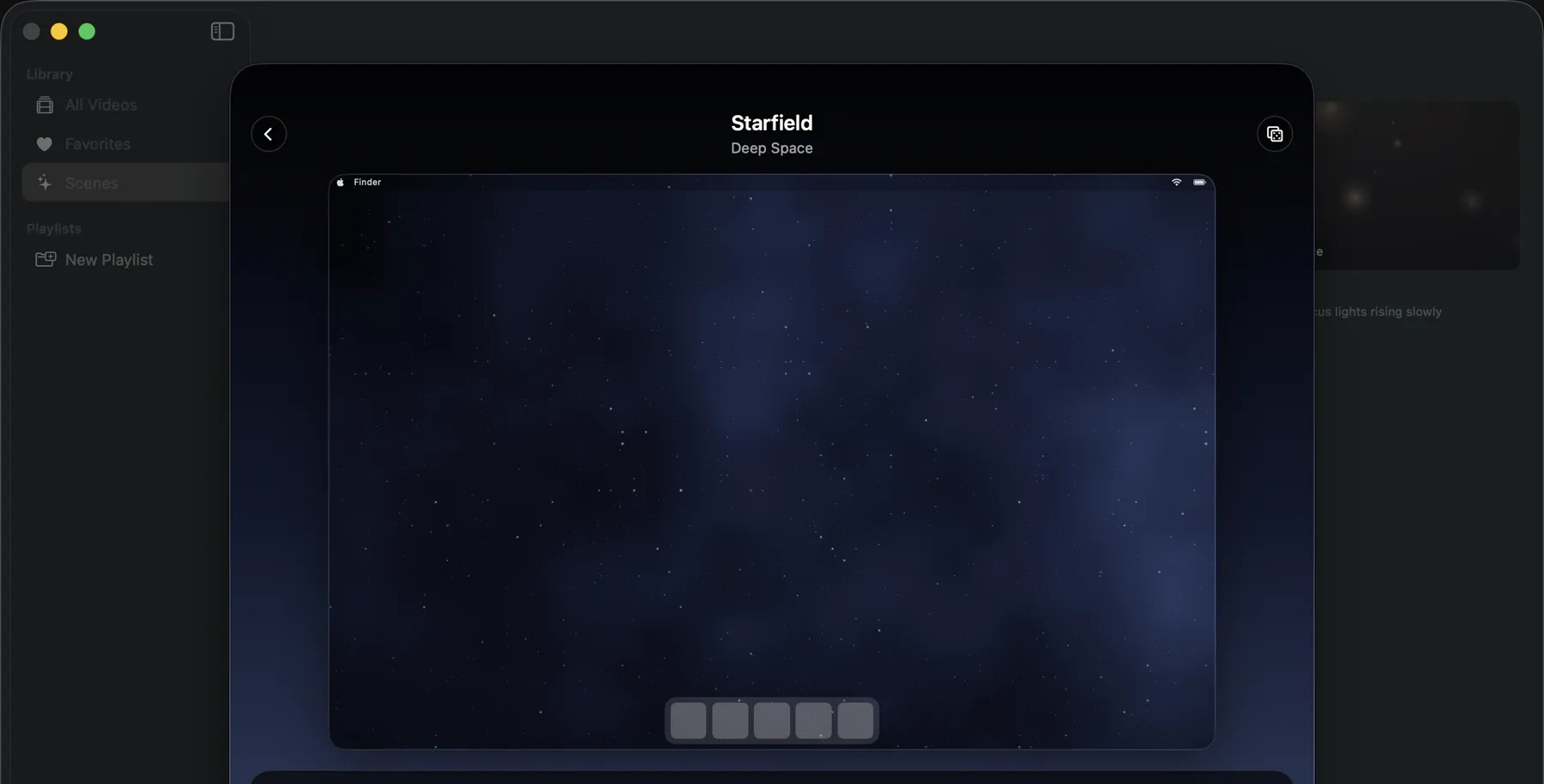
Battery use and performance
A generative scene does not automatically use less battery than a video. Scenes draw each frame on the GPU; videos use dedicated decoding hardware. Both use power.
Choose a quality mode in Walyro’s Scenes settings. Separately, Walyro can stop wallpapers altogether in Low Power Mode.
- High draws 30 frames per second.
- Economy draws 12 frames per second and reduces motion and detail.
- Auto steps down when the Mac is warm or in Low Power Mode, then restores quality when conditions improve.
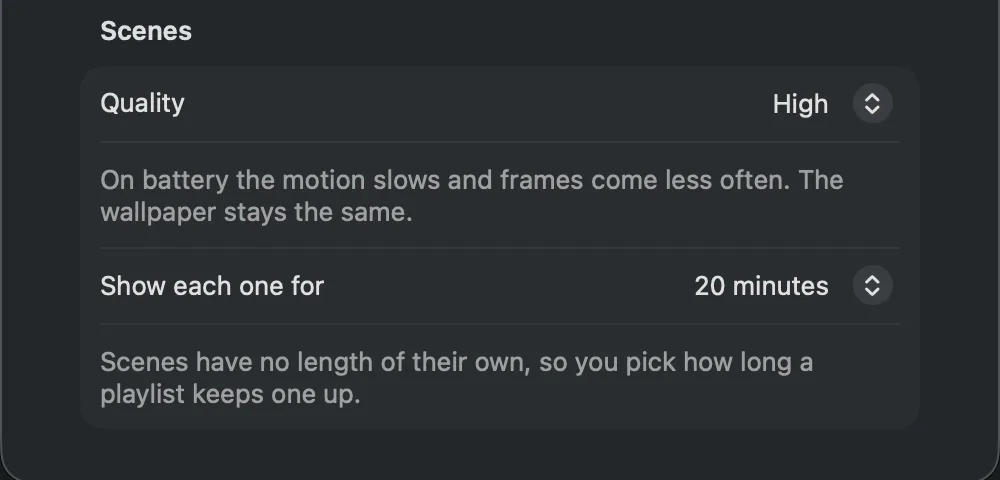
Use scenes on multiple displays and in playlists
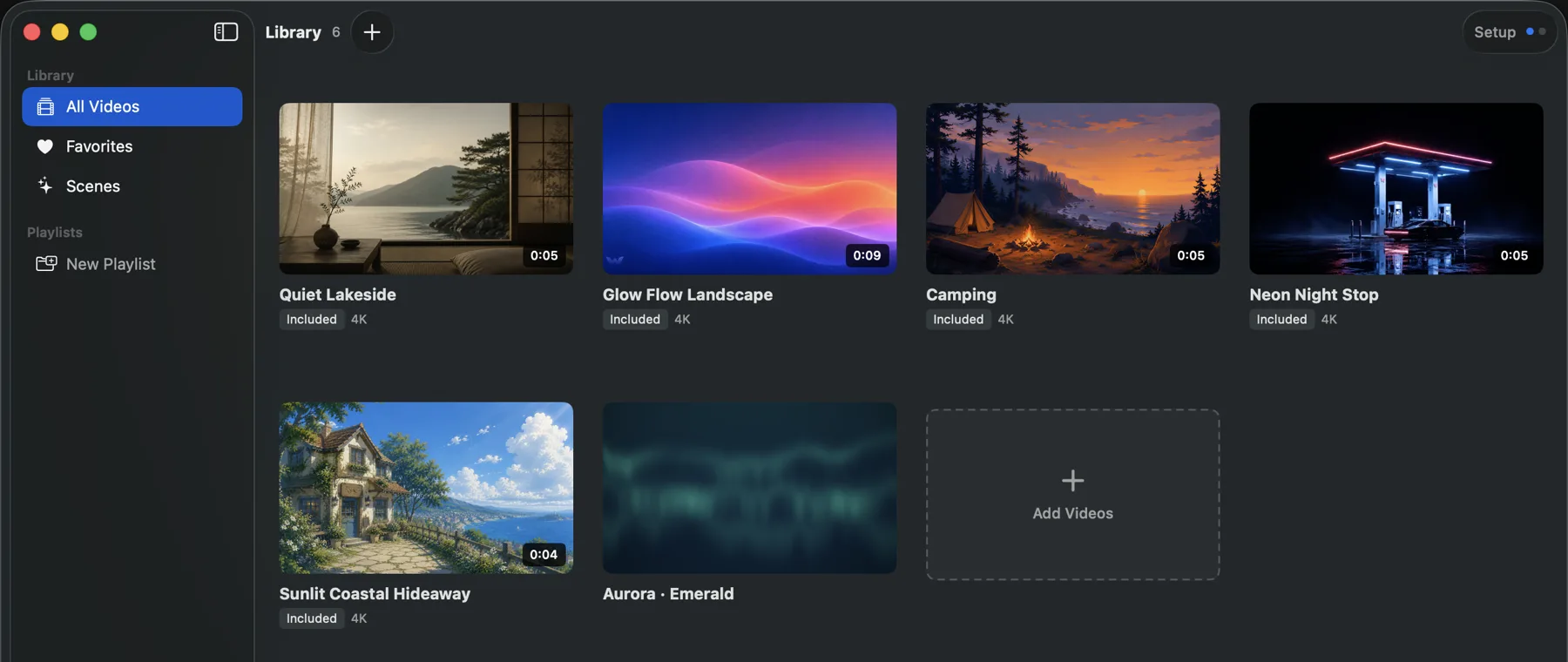
A saved scene appears in All Videos beside your imported videos. Add it to favourites or a playlist, and send it to all displays, the main display or one selected screen. One screen can show a scene while another plays your own video.
A video has a fixed length; a scene has no natural end. Choose a playlist interval of 5, 20 or 60 minutes to control how long each scene stays on screen. Playlists can mix scenes and video files.
How generative wallpaper differs from a video
A video is recorded or rendered in advance, stored as a file and played on a loop. A generative scene describes a look to your graphics chip and draws every frame as you watch. There is no video loop point where playback restarts.
The app and your saved settings still occupy disk space, but there is no separate video file to store. Since frames are generated locally, the scene can respond to the clock, your macOS accent colour and the state of your desktop without an internet connection.
Generative scene or video wallpaper?
Choose a scene for adjustable motion and colours. Choose a video when you want your own footage on the desktop. Both work in Walyro.
Wallpaper file
- Generative scene
- Settings only; no separate video file
- Video wallpaper
- A video file stored on your Mac
Find or import a clip
- Generative scene
- Not needed
- Video wallpaper
- Use a starter video or import your own
Your own footage
- Generative scene
- No
- Video wallpaper
- Yes
Repeats on a loop
- Generative scene
- No
- Video wallpaper
- Yes
Responds to daylight and desktop activity
- Generative scene
- Yes
- Video wallpaper
- No
Colour choices
- Generative scene
- Six variants per scene, plus the macOS accent colour
- Video wallpaper
- Colours in the video
Playlist duration
- Generative scene
- 5, 20 or 60 minutes
- Video wallpaper
- The length of the clip
Separate displays
- Generative scene
- Yes
- Video wallpaper
- Yes
Common questions
Is this the same as Apple’s Dynamic Desktop?
No. Apple’s Dynamic Desktop changes between still images as the day progresses. A generative scene moves continuously, and daylight changes its colours rather than switching to a different photograph.
Can I generate a wallpaper from a text prompt?
No. These are procedural scenes rendered locally on your Mac, not an AI image generator. You choose a scene and colour variant, then adjust its motion, brightness, detail and behaviour.
Can I use any colour I want?
You can choose from six variants per scene or use your Mac’s accent colour for the highlight. The sliders control motion, brightness and detail; they are not an arbitrary colour picker.
Do I need an internet connection?
Once Walyro is installed, scenes render locally from your settings. You do not need to stream or download wallpaper videos to use them.
Do generative wallpapers use less battery than a video wallpaper?
Not automatically. A scene draws every frame on the GPU, while a video is decoded by dedicated hardware built for that job, so neither is free. What you control is the quality mode: Economy draws 12 frames per second instead of 30, Auto steps down when the Mac is warm or in Low Power Mode, and Walyro can stop wallpapers altogether in Low Power Mode.
Can I use a scene on a second display, or in a playlist?
Yes. A saved scene appears in All Videos beside your imported clips, so it can go to all displays, the main display or one selected screen, and one screen can show a scene while another plays your own video. Because a scene has no natural end, playlists give it an interval of 5, 20 or 60 minutes, and a playlist can mix scenes and videos.
Which Macs can run scenes?
Walyro requires macOS 14 or later. Scenes use Metal, Apple’s graphics framework, which is supported by Macs running that version of macOS.
Sources & further reading
Make a scene your own
Choose a starting look, adjust it in the preview and set it on your display. Walyro runs on macOS 14 and later.
4.7 out of 5 · 95 ratings on the Mac App Store