
How to change the wallpaper on your Mac
Changing your desktop background on macOS takes about a minute in System Settings. This guide covers every built-in option (a still picture, Apple's dynamic scenes, and aerial screen savers), then shows how to set your own video as a live wallpaper.
Mac wallpaper settings at a glance
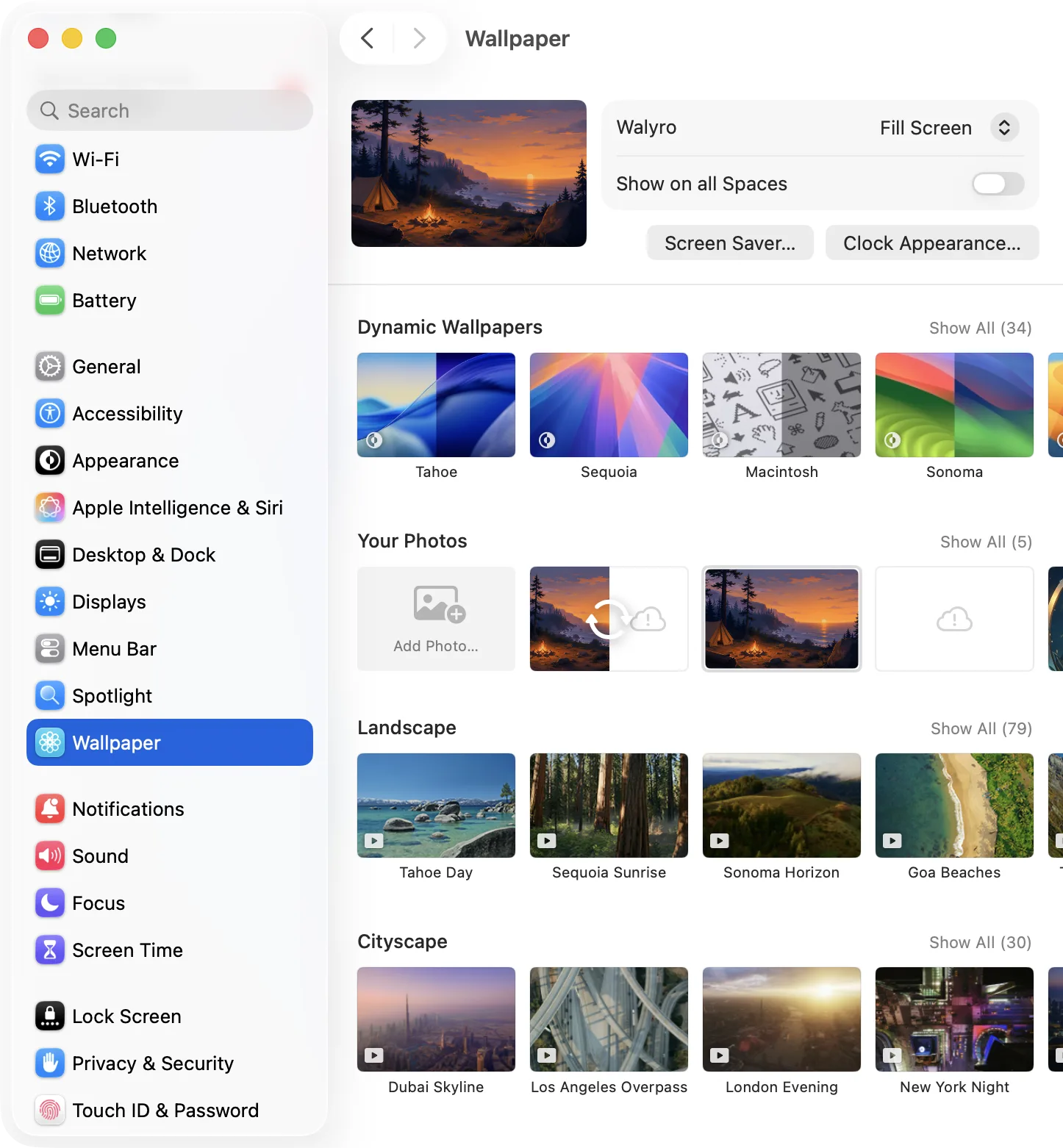
To change the wallpaper on your Mac, open the Apple menu, choose System Settings, and click Wallpaper in the sidebar. Pick one of Apple's pictures, a dynamic time-of-day scene, or click Add Photo to use your own image. Then choose how it fills the screen and which display it applies to. The whole thing takes under a minute.
That covers still images and Apple's built-in scenes. What macOS can't do on its own is set your own video (an MP4 or MOV clip) as a live, moving wallpaper. This guide walks through every built-in option first, then shows how to add real motion with a live-wallpaper app like Walyro.
- macOS location
- System Settings → Wallpaper (macOS 14 Sonoma and later)
- Built-in options
- Photos, dynamic time-of-day scenes, aerials, and solid colors
- Your own files
- Any photo works natively; a video needs a live-wallpaper app like Walyro
- Per-display control
- Each connected display can show its own wallpaper
- Formats
- MP4, MOV, and M4V; H.264 or HEVC plays best
- Purchase
- One-time purchase, no subscription or ads
Change your Mac wallpaper to a picture
The fastest way to change your wallpaper on Mac is through System Settings. Open the Apple menu in the top-left corner, choose System Settings, then click Wallpaper in the sidebar. Pick any of Apple's built-in pictures and the desktop updates instantly.
To use your own image, scroll to the Photos section or click Add Photo, then select a file from your library or a folder. Under the fill options, choose Fill Screen, Fit to Screen, or Center so the picture sits correctly on your display.
- Open the Apple menu (top-left) and choose System Settings
- Click Wallpaper in the sidebar
- Choose a built-in picture, or click Add Photo / Add Folder for your own
- Set Fill Screen, Fit to Screen, or Center to control the framing
- On a multi-display Mac, repeat for each screen you want to change
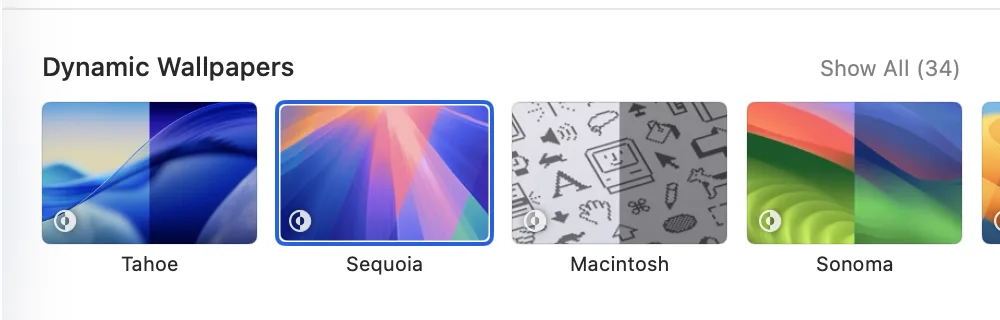
Use Apple's dynamic time-of-day wallpapers
Dynamic wallpapers are Apple's desktop pictures that shift automatically as the day goes on: brighter in the morning, darker at night. In System Settings → Wallpaper, choose a wallpaper from the Dynamic Desktop category, then set it to Automatic so it follows your local time, or lock it to a Light or Dark still.
Dynamic wallpapers add gentle variety, but they only use Apple's own scenes. If you want the desktop to change through your own images or clips instead, that's where a dedicated wallpaper app comes in.
- Open System Settings → Wallpaper
- Pick a wallpaper from the Dynamic Desktop category
- Choose Automatic to follow time of day, or Light / Dark to fix the look
- Turn on Location Services if Automatic isn't switching correctly
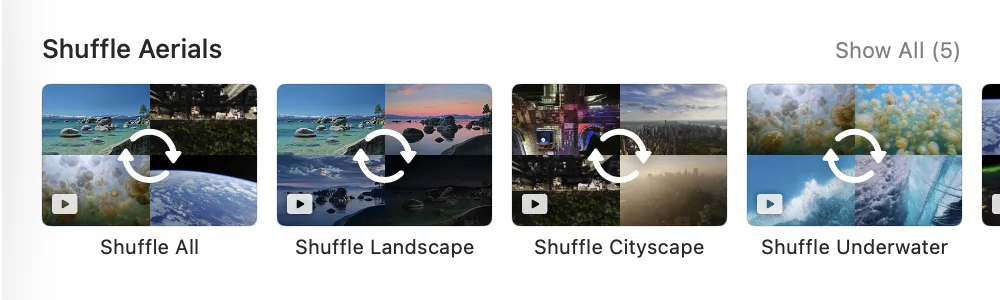
Set an aerial screen saver as a moving wallpaper
Since macOS Sonoma, Apple's Aerial screen savers (slow, cinematic drone footage) can double as a moving desktop wallpaper. When your Mac wakes, the aerial video smoothly settles into a matching still image, so the desktop feels alive without being distracting.
Open System Settings → Wallpaper, choose a category like Aerials, Landscape, or Cityscape, and enable "Show as screen saver" if you want the same clip in both places. It is the closest built-in option to a live wallpaper, but it is still limited to Apple's video library, not your own clips.
- Open System Settings → Wallpaper (or Screen Saver)
- Choose an Aerials, Landscape, Cityscape, or Underwater wallpaper
- Optionally enable "Show as screen saver" to reuse the same clip
- Note: these are Apple's videos only, so you can't add your own here
How to set your own video as a live wallpaper on Mac
macOS has no built-in way to set an MP4 or MOV file as your desktop background. Apple limits motion wallpaper to its own aerial library. To use your own footage, you need a live-wallpaper app. Walyro is a macOS 14+ app built for exactly this: it turns local video files into live wallpaper and keeps everything offline.
Install Walyro, then import a clip from Finder (MP4, MOV, and M4V all work) or start with one of the built-in starter videos. Preview how it sits behind the desktop with Fit, Fill, or Crop, choose which display it plays on, and set it. Playback stays muted by default, and you can pause, resume, or clear it from the menu bar whenever you need a quiet screen.
- Install Walyro on macOS 14.0 or later
- Import an MP4, MOV, or M4V from Finder, or use a built-in starter clip
- Preview the fit (Fit, Fill, or Crop) behind a Mac-style desktop
- Choose all displays, the main display, or one screen, then set it
- Pause, resume, or clear the motion anytime from the menu bar
Change the wallpaper on a second monitor or MacBook display
On a multi-display Mac, System Settings shows a separate wallpaper thumbnail for each screen. Click the display you want, then choose its picture, so your main monitor and a second screen can run completely different backgrounds.
The same idea applies to live wallpaper. With Walyro you can send one video or Playlist to your MacBook display and a different one to an external monitor, and pause either screen without touching the other.
- Open System Settings → Wallpaper with both displays connected
- Select each display thumbnail to set its wallpaper separately
- For video wallpaper, Walyro assigns a clip or Playlist per display
Wallpaper won't change? Common fixes
If your new wallpaper looks blurry, the source image is smaller than your screen. Use a picture at your display's native resolution (for example 3024×1964 on a 14-inch MacBook Pro, or 5120×2880 on a 5K display) so it stays sharp.
If a dynamic wallpaper won't shift with the time of day, turn on Location Services in System Settings → Privacy & Security. And if the Add Photo option is missing, check that you're on macOS 14 Sonoma or later, since the Wallpaper settings layout changed in that release.
- Blurry background: use an image at your display's native resolution
- Dynamic wallpaper stuck: enable Location Services for Automatic mode
- Missing options: confirm you're on macOS 14 Sonoma or later
- Video wallpaper stutters: use H.264 or HEVC clips and pause on battery
Built-in macOS wallpaper vs a live wallpaper app
What you can set
- macOS System Settings
- Photos, Apple dynamic scenes, and aerials
- Walyro
- Any MP4, MOV, or M4V video as live wallpaper
Your own video
- macOS System Settings
- Not supported natively
- Walyro
- Import your own clips from Finder
Motion control
- macOS System Settings
- Aerials play on a fixed schedule
- Walyro
- Pause, resume, and clear from the menu bar
Per display
- macOS System Settings
- A different picture per display
- Walyro
- A different video or Playlist per display
Cost and privacy
- macOS System Settings
- Included with macOS
- Walyro
- One-time purchase, fully offline, no account
Common questions
How do I change my wallpaper on a Mac?
Open the Apple menu, choose System Settings, and click Wallpaper in the sidebar. Pick a built-in picture or click Add Photo to use your own, then choose Fill Screen, Fit to Screen, or Center. The change applies instantly, and you can set a different wallpaper on each display.
Can I set a video as my wallpaper on Mac?
Not with the built-in settings. macOS only offers Apple's own aerial and dynamic scenes. To use your own MP4 or MOV clip as a live wallpaper, install a live-wallpaper app like Walyro, import the video, and set it on any display.
How do I use an MP4 as my Mac desktop background?
macOS can't set an MP4 as wallpaper on its own. Open Walyro, import the MP4 (MOV and M4V also work) from Finder, preview the fit, and set it as your live wallpaper. Playback stays local and muted, with pause controls in the menu bar.
How do I make my Mac wallpaper move?
For built-in motion, choose an Aerial or dynamic wallpaper in System Settings → Wallpaper. To make your own video move on the desktop, use a live-wallpaper app such as Walyro, which loops local MP4, MOV, and M4V files behind your desktop.
Why does my Mac wallpaper keep reverting or look blurry?
A blurry wallpaper usually means the image is smaller than your screen. Use one at your display's native resolution. If it reverts after restart or the Add Photo option is missing, confirm you're running macOS 14 Sonoma or later, where the Wallpaper settings were redesigned.
Can I set a different wallpaper on each monitor?
Yes. In System Settings → Wallpaper, each connected display has its own thumbnail, so you can set a separate picture per screen. For live video wallpaper, Walyro assigns a different clip or Playlist to each display.
Sources & further reading
Ready for a wallpaper that actually moves?
macOS changes the picture; Walyro brings your own video to the desktop. Import a clip, preview the fit, and set it on any display, fully offline.

4.7 out of 5 · 95 ratings on the Mac App Store